


All Translate: Photo, PDF, DOC
4.6115.00 Reviews
App Specs
- Version
- 1.0.93
- Updated On
- License
- Free
- Downloads
- 1,000,000+
- Developer
- Daily Tool Labs
- Categories
- Productivity
- Platform
- Android
Screenshots
 Analysis by AppCompare
I reach for All Translate: Photo, PDF, DOC when a language barrier interrupts an ordinary task: a label I can’t read, a short message I need to understand, or a document that would take too long to handle line by line. Its appeal is the range of translation inputs in one place, rather than a promise to replace a human translator. That distinction matters: it can help me get oriented quickly, but I still check important wording before acting on it.
When a connection becomes part of the workflow
Translation can depend on more than the words on screen. A request may involve opening a file, capturing an image, or sending text for processing, and a weak connection can interrupt that routine. I would therefore treat this as a tool to try when I have a usable network, especially for longer documents, rather than assuming every function will work in every connectivity situation.
For a quick phrase, I can keep the source text ready to paste and retry if a request stalls. With a document, I would wait until I have a steady connection before starting, so a delay does not leave me unsure whether the whole file was handled. That small habit makes the experience less stressful when I’m away from home.
Useful in different mobile situations
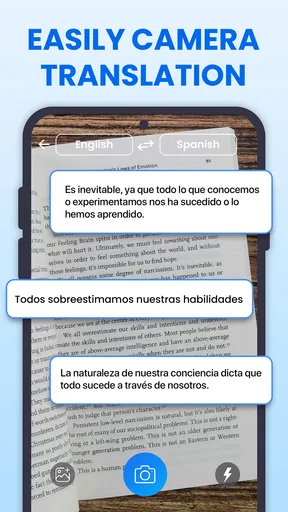
The app’s mix of text, camera, voice, screen, and file translation is useful because people encounter foreign language in different forms. At a café, I might point the camera at a menu; while reading a message, I might work with text; and when a work or study file arrives as a PDF or DOC, I can try translating the document instead of retyping it. These are distinct jobs, and having them gathered together can save time switching between separate tools.
For a realistic travel example, imagine arriving at a station and needing to understand a notice before choosing a platform. A camera-based translation could help me grasp the general instruction quickly. I would still compare the result with visible numbers, place names, or symbols, and ask staff if a safety-critical detail remained unclear. The app is most useful there as a first pass, not as the only source of truth.
What to do when a result seems wrong
Translation quality depends on the input. A blurry photo, decorative lettering, glare, a cropped sentence, or a document with a complicated layout can make the source harder to interpret. If the output looks odd, I would retake the image in better light, include the full sentence, or copy the text directly when possible. For a longer file, checking headings and key paragraphs separately can reveal whether the translation has preserved the meaning I need.
I also avoid treating fluent-sounding output as proof of accuracy. Names, measurements, dates, formal instructions, and phrases with cultural nuance deserve a second look. If the result affects a contract, medical decision, or official submission, a qualified human translator is a safer choice. For everyday comprehension, though, a quick machine translation can still be a useful starting point.
Worth Reading Before You Choose

Flipboard Shows What News Apps Must Do Beyond the Feed

Switching to Android Auto Means Rethinking Your Driving Routine

Google Calendar Makes a Crowded Week Easier to Manage

Ludo King Makes the Most of the Minutes Between Plans

Baby Panda World Brings Quick Play to Modern Phones, but Its Game Library Feels Busy

ESPN’s Live Game View Makes Following Close Games Easier
Keeping data use practical
When I’m trying to conserve mobile data, I would save the most demanding tasks for Wi-Fi where possible and avoid repeatedly submitting the same long file while troubleshooting. For short text, I keep the original phrase handy so I can make one clear attempt rather than several guesses. These are simple ways to stay deliberate without assuming anything about how the app stores or processes material.
I’m also careful about what I choose to translate on a phone. Before selecting a personal document, I consider whether its contents are appropriate to handle through a translation app at all. For sensitive work or private records, an approved service with suitable safeguards may be the better route. Convenience is valuable, but it should not decide how confidential information is treated.
First Impressions and Interface
The first thing you notice when you open All Translate: Photo, PDF, DOC is its clean and straightforward interface. Nothing too cluttered, which is a relief because when you're trying to translate something on the fly, the last thing you need is a confusing app layout. It’s like the developers knew exactly what we wanted: simplicity and efficiency.
Navigation is a breeze with clearly labeled buttons and intuitive design. You’ve got your main options right upfront, making it super easy to jump between translating text, photos, or documents. The app does a fantastic job of balancing function and form, so you’re not left tapping aimlessly trying to find what you need.
Features That Stand Out
Okay, let’s talk features because this is where the app really shines. First up, the photo translation tool. Just snap a picture, and bam – the app magically translates the text in the image. It’s perfect for those moments when you’re traveling and need to decipher a menu or a street sign. The accuracy is pretty impressive, considering it's dealing with various fonts and backgrounds.
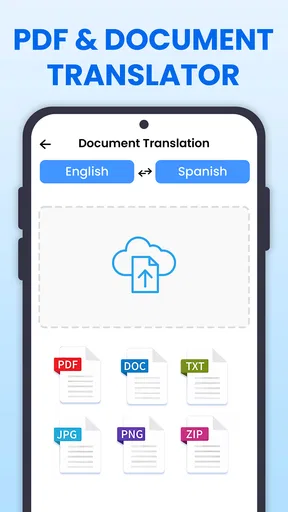
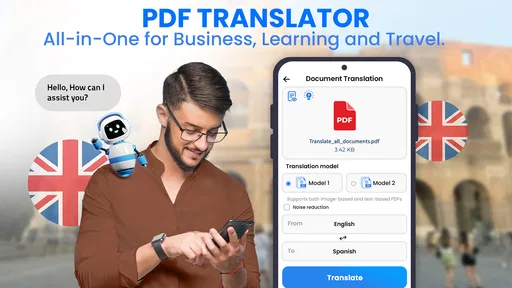
Next, the PDF and DOC translation capabilities. This is a lifesaver for anyone dealing with international documents. You don’t have to go through the hassle of converting files into text and then translating. Just upload your file, and the app handles the rest. It’s quick, efficient, and supports a surprising number of languages.
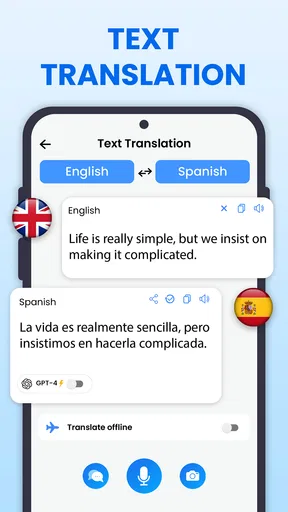
And let’s not forget the classic text translation feature. It covers a vast array of languages, and the translations are quite reliable. It’s fantastic for quick conversations or understanding snippets of foreign text. I’ve tried it with a few languages, and the results were pretty spot-on.
Performance and Usability
When it comes to performance, speed is key, and this app doesn’t disappoint. Translation times are swift, which is crucial when you’re in a hurry. Whether you’re translating a word or an entire document, it gets the job done with minimal waiting.
Another thing I love is how user-friendly it is. Even if you’re not tech-savvy, you’ll find navigating through the app to be a walk in the park. The developers have clearly put a lot of thought into making this accessible for everyone, which is a huge plus in my book.
Additional Perks
One of the app’s cool bonuses is its offline mode. This is a big deal if you’re traveling somewhere without reliable internet. You can download languages beforehand and use the app without a hitch. It’s like having a pocket translator that doesn’t require a Wi-Fi connection.
Also, there’s the pronunciation guide feature, which helps you learn how to say words correctly. It’s kind of like having a language tutor on standby, which is super handy if you’re trying to pick up a new language on the go.
All Translate is a free productivity app from Daily Tool Labs, rated for Everyone and available in version 1.0.82 on devices running Android 8.0 or later. It has a 4.8 average from around 12,000 ratings and has passed over one million installs. The app is free to start, with in-app purchases ranging from $4.99 to $99.99 per item, so I’d check the purchase details before committing to anything beyond basic use. It was released on March 18, 2025.
Who benefits most, and where another tool wins
I think it suits people who regularly move between kinds of source material: students reading a foreign-language handout, travelers checking signs, or office workers trying to understand a received document before deciding what to do next. The practical advantage is not simply that it translates; it lets me choose an input that matches what I have in front of me. That can prevent the tedious detour of typing a page of text from a file or photograph.
It is less compelling if I only need polished translations of a few sentences. A dedicated text translator may feel simpler for that narrow job, while a document-focused service may be preferable when precise formatting and review workflows matter more than convenience. For language study, a dictionary or learning app gives more context about grammar and usage. I see All Translate as a flexible first stop, not a substitute for those specialized tools.
A useful habit with scanned pages is to photograph one page at a time and check the result before moving on. That makes it easier to spot a missed line or a heading that was read incorrectly, instead of discovering a problem after relying on a long translation. For text copied from a screen, I would also include the sentence around the unfamiliar phrase; isolated words can have several meanings, and context often changes the best translation.
Choosing the right level of confidence
One question I would ask before using any translation app is whether the result needs to be understandable or exact. For a menu, travel notice, or casual message, a clear gist is often enough to keep moving. For an application form or an instruction with consequences, I would use the app to identify the general meaning, then verify the important wording with a person or a more authoritative source.
Another practical question is what to do when a file is hard to read. I would first check whether the original document itself is clear, then try a cleaner source or translate the crucial passage separately. If the layout is dense, a full-document result may be less useful than targeted excerpts. This approach takes a little more care, but it helps me avoid mistaking a smooth-looking translation for a complete one.
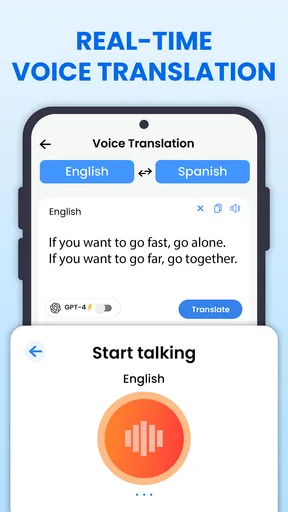
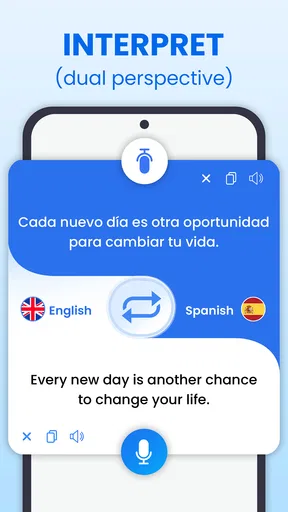
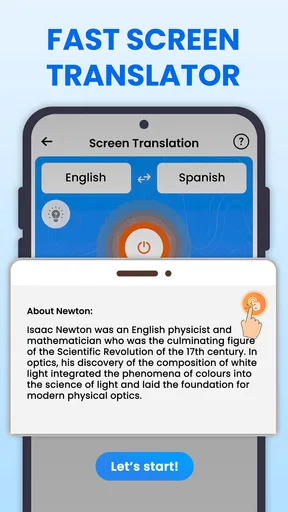
Voice and screen translation can be handy when typing is inconvenient, but the source still matters: background noise, fast speech, or crowded screen text can complicate interpretation. I’d use those options for quick assistance and confirm names, addresses, and instructions before repeating or acting on them. The range of modes is a real convenience, though it does not remove the need to judge whether the input was captured correctly.
My connectivity verdict
The strongest reason I’d keep this app around is its variety: the same translation companion can help with a photo, a spoken phrase, text on a screen, or a document. That breadth is especially helpful on a phone, where the material I need to understand changes from one moment to the next. The trade-off is that translation tasks are not equally forgiving, and a connection problem or an unclear source can turn a quick lookup into a bit of troubleshooting.
For ordinary travel and everyday comprehension, I’d recommend giving it a try, particularly if I often receive PDFs or DOC files in languages I don’t know. I would not rely on it alone for confidential material or high-stakes wording, and I would keep a backup way to ask for help when the network is unreliable. With those expectations, it feels like a convenient pocket utility rather than an interpreter I should trust without checking.
Final Thoughts
In a nutshell, All Translate: Photo, PDF, DOC is a fantastic tool for anyone looking to break down language barriers with ease. It’s packed with features that cater to a variety of needs, from casual users to professionals. The app’s simplicity and efficiency make it a standout choice in the crowded world of translation apps.
If you’re in the market for a reliable translation app that can handle everything from text to documents, I’d definitely recommend giving this one a try. It’s like having your own personal interpreter, ready to help you out wherever you go.
Pros
- Supports multiple file formats seamlessly.
- High accuracy in text recognition.
- User-friendly interface design.
- Fast translation processing.
- Offline mode available for basic translations.
Cons
- Limited language options in offline mode.
- Occasional delays with large files.
- Subscription required for premium features.
- Some inaccuracies in complex documents.
- No batch processing option available.
FAQs for All Translate: Photo, PDF, DOC
What platforms does All Translate support?
All Translate is available for both Android and iOS devices. It supports a wide range of file formats, including photos, PDFs, and DOC files, making it incredibly versatile for translating different types of documents across various platforms.
Can All Translate handle multiple languages?
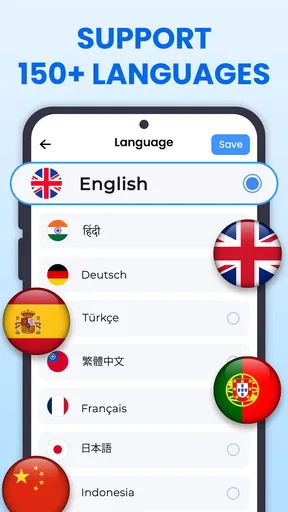
Yes, All Translate supports a vast array of languages, allowing users to translate text from and to numerous global languages. This feature makes it an excellent tool for travelers, students, and professionals who need reliable translation services on the go.
How does All Translate handle document privacy and security?
All Translate takes user privacy seriously and employs encryption to secure documents during the translation process. Users can trust that their sensitive information remains protected, and the app adheres to strict data privacy standards, ensuring a safe translation experience.
Is an internet connection required to use All Translate?
While All Translate can perform some basic translations offline, a stable internet connection is recommended for the most accurate and comprehensive translation results. The app uses online resources to ensure translations are up-to-date and accurate.
What are the costs associated with using All Translate?
All Translate offers a free version with basic features. However, for more advanced functionalities like high-volume document translation and additional language packs, users may need to subscribe to a premium plan. The subscription details are clearly outlined within the app.


